
Google has announced that they are discontinuing their "Check mail from other accounts" feature in Gmail.
Instead, you should follow our instructions to use Email Forwarding and a SMTP Password.
You can also use any other email client, such as Mozilla Thunderbird, to check your email (see Accessing Your Email).
Setup Instructions
Follow the steps below to setup your email address in Gmail.
- In Gmail, click the gear icon
 in the upper right, then select See all settings
 - Go to the Accounts and Import tab
- To Add a New Address
- Under Check mail from other accounts, click Add a mail account
- Enter your new Email address and click Next
- Select Import emails from my other account (POP3) and click Next
- To Edit an Existing Address
- Under Check mail from other accounts, click edit info to the right of your email address
- Under Check mail from other accounts, click edit info to the right of your email address
- To Add a New Address
- On the next page, enter the following information:
Username: Your Full Email Address
Password: Your Email Password
POP Server: pop.misk.com
Port: 995
Always use a secure connection (SSL) when retrieving mail: Checked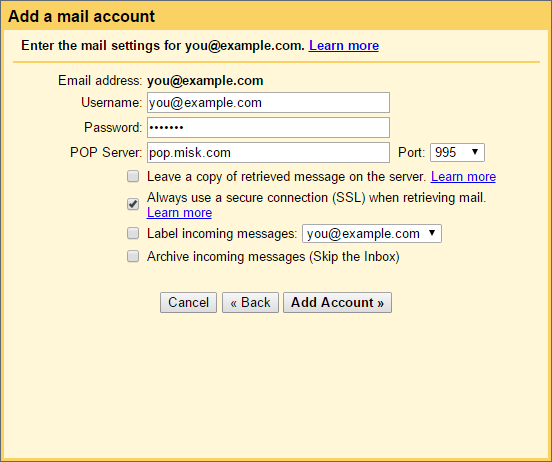
- Click Add Account or Save Changes (depending on if you are adding or editing an address)
- That takes care of receiving mail. Now, you need to setup your ability to send mail.
- When Adding a New Address
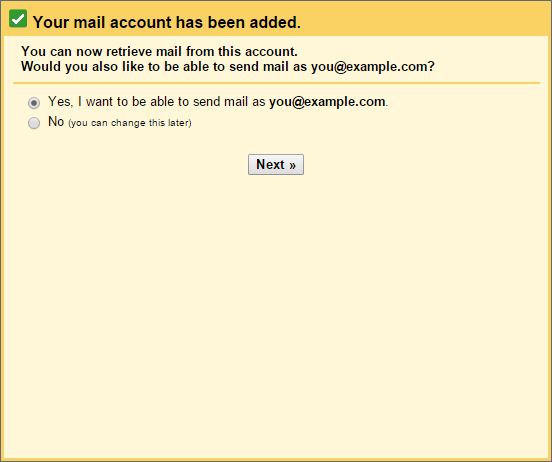
- After adding the account, Gmail will immediately ask if you'd like to be able to send mail with it as well
- Select Yes, I want to be able to send mail as ...
- Click Next
- To Edit an Existing Address
- Click the gear icon in the upper right, then select Settings
- Go to the Accounts and Import tab
- Under Send mail as, find your address and click edit info to the right of it
- Skip to Step 6
- Click the gear icon
- When Adding a New Address
- Enter your Name
- Uncheck Treat as an alias
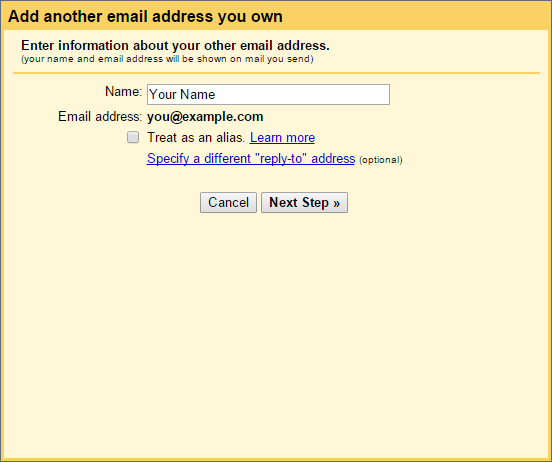
- Click Next Step
- On the next page, enter the following information:
SMTP Server: smtp.misk.com
Port: 465
Username: Your Full Email Address
Password: Your Email Password
Secured connection using SSL: Selected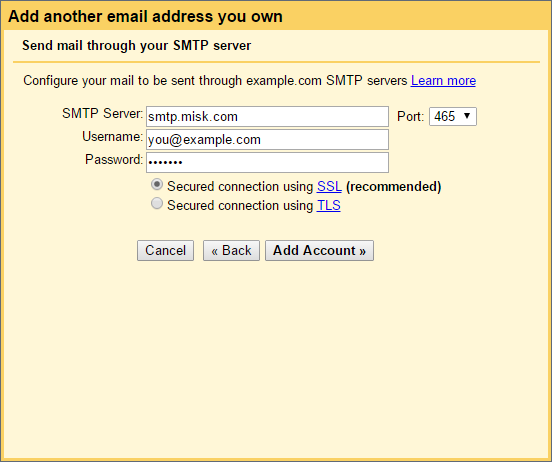
- Click Add Account or Save Changes (depending on if you are adding or editing an address)
- When adding a new address, Google will need to verify it
- They will send a confirmation email to the address
- Follow the instructions in their email to confirm the address
- After verifying it, setup will be complete and you'll be able to send with the address